
Quick facts
- Platform
- Dynamics 365 model-driven apps
- Usage
- Browser
- Options
- Extension / Bookmarklet
- Requirements
- System Administrator security role
- Cost
- Free
- Licence
- MIT
- Version
- 2.3.5
- Source
- GitHub
How do you want to use it?
The toolkit does exactly the same thing either way. The only difference is how the browser loads it.
Browser extension
The default choice. Use the bookmarklet only if you cannot install browser extensions.
The toolkit is loaded into Chrome or Edge as an unpacked extension. You click an icon in the browser toolbar to open the toolkit. The toolkit ships inside the extension, so the tool runs locally once installed.
Best for: machines where you are allowed to turn on developer mode and load an unpacked extension.
Download the extension (ZIP)Bookmarklet
A bookmarklet is a browser bookmark that holds a short piece of JavaScript instead of a web address. Clicking it runs the toolkit on the page you are already looking at. Nothing is installed in the browser. The JavaScript file is hosted by Oliver4, but once it has loaded on the page, the toolkit runs entirely on your machine - no further network calls, no data leaves your browser.
Best for: managed or corporate environments where browser extensions are blocked by policy.
Get the bookmarkletNot sure which one you need?
Answer a few short questions and this will tell you which route to take.
Overview
Working on a model-driven app form, you regularly need things the form itself will not easily give you: the record ID, a field that is hidden on this form, a read only field you need to set while testing, or the logical name behind a display label.
The Oliver4 Developer Toolkit puts those in one floating panel that opens over the form. It reads the record and its table through the Client API and the Web API, so it works against whichever environment is already open in the tab.
It is built for people who cannot, or would rather not, put developer tooling into a Dynamics 365 environment. There is no solution to import and no web resource to deploy. It runs entirely in the browser, and the changes it makes to a form affect what is rendered on screen only. Nothing is written to Dataverse unless you save the record yourself.
Who is it for?
- Dynamics 365 developers who need the record ID, a hidden field, or the schema name behind a label while building or debugging a form
- Testers and technical consultants who need to set a read only or business-required field to reproduce a scenario
- Solution architects picking apart an unfamiliar form: its scripts, its event handlers, its business rules and the table behind it
- Anyone whose organisation blocks the browser extensions they would normally use for this
You need the System Administrator security role to open the panel. This prevents non-administrators from using this tool.
Screenshots
Why build another toolkit?
Similar tools already exist. This one was built to close three gaps they leave open.
-
Admin-only by design
Unlocking read only fields and revealing hidden ones is admin work. The panel will not open without the System Administrator security role.
Usually: open to any user
Here: System Administrators only
-
Runs where extensions can't
Many organisations block browser extensions. Add it as a bookmarklet instead - nothing to install, one click to run.
Usually: browser extension only
Here: extension or bookmarklet
-
Sees further into the form
Every field value on the record, the JavaScript libraries and event handlers behind the form, and its business rules.
Usually: spread across several tools
Here: one panel, one click
Features
-
Change the form
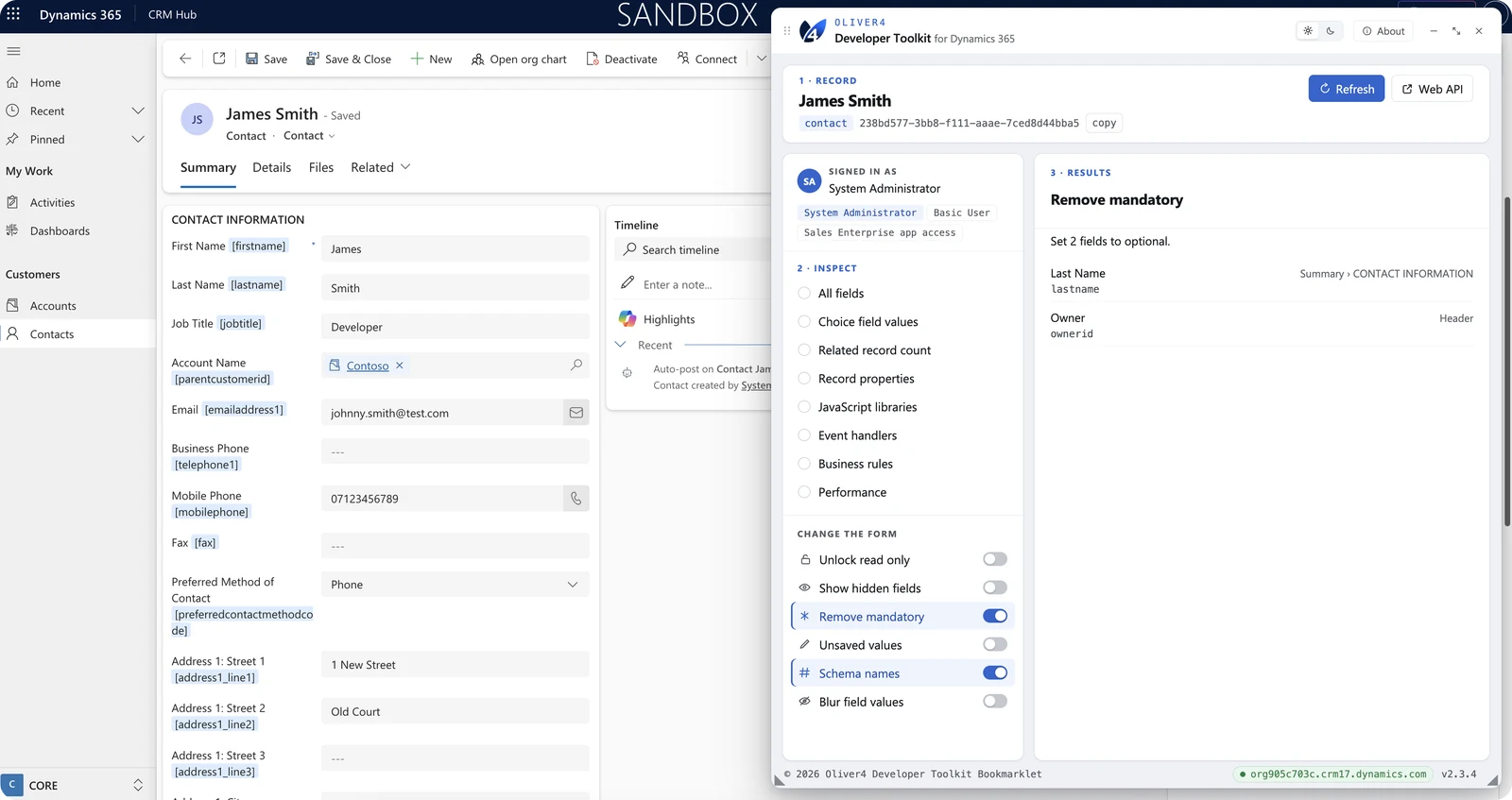
Six switches that alter the rendered form: unlock read only fields, show hidden fields, remove mandatory, highlight unsaved values, append schema names to labels, and blur field values. Several can be on at once, and none of them changes stored data.
-
Inspect every field on the record
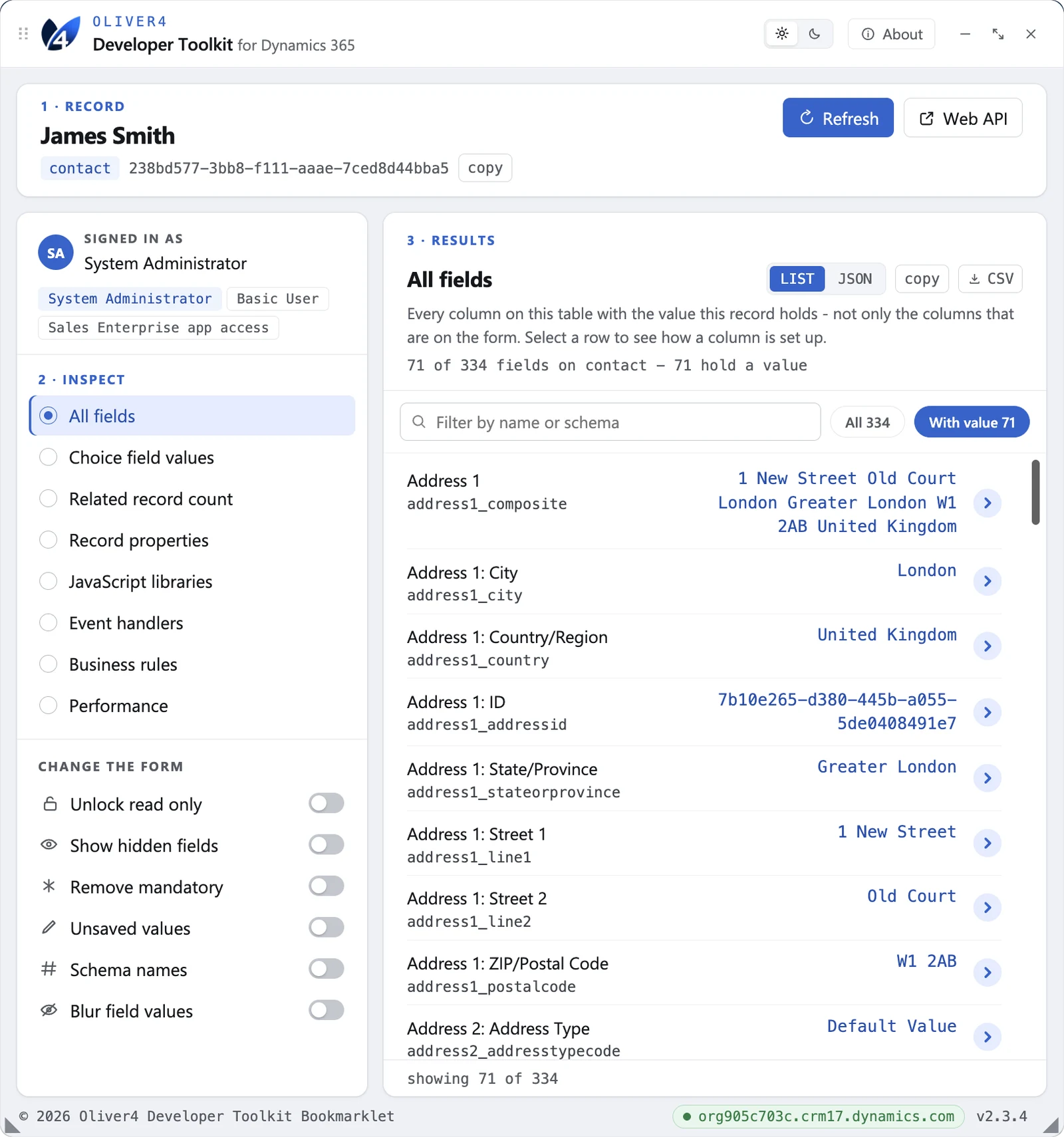
Every field on the Table with this record's value, as a list or as JSON. Filter by name, switch between all fields and only those holding a value, copy the lot, or download it as CSV. Each row opens on its full column definition.
-
Table and record metadata
Choice field values, record properties, and a count of related records for every 1:N and N:N relationship on the table.
-
Form scripts and business rules
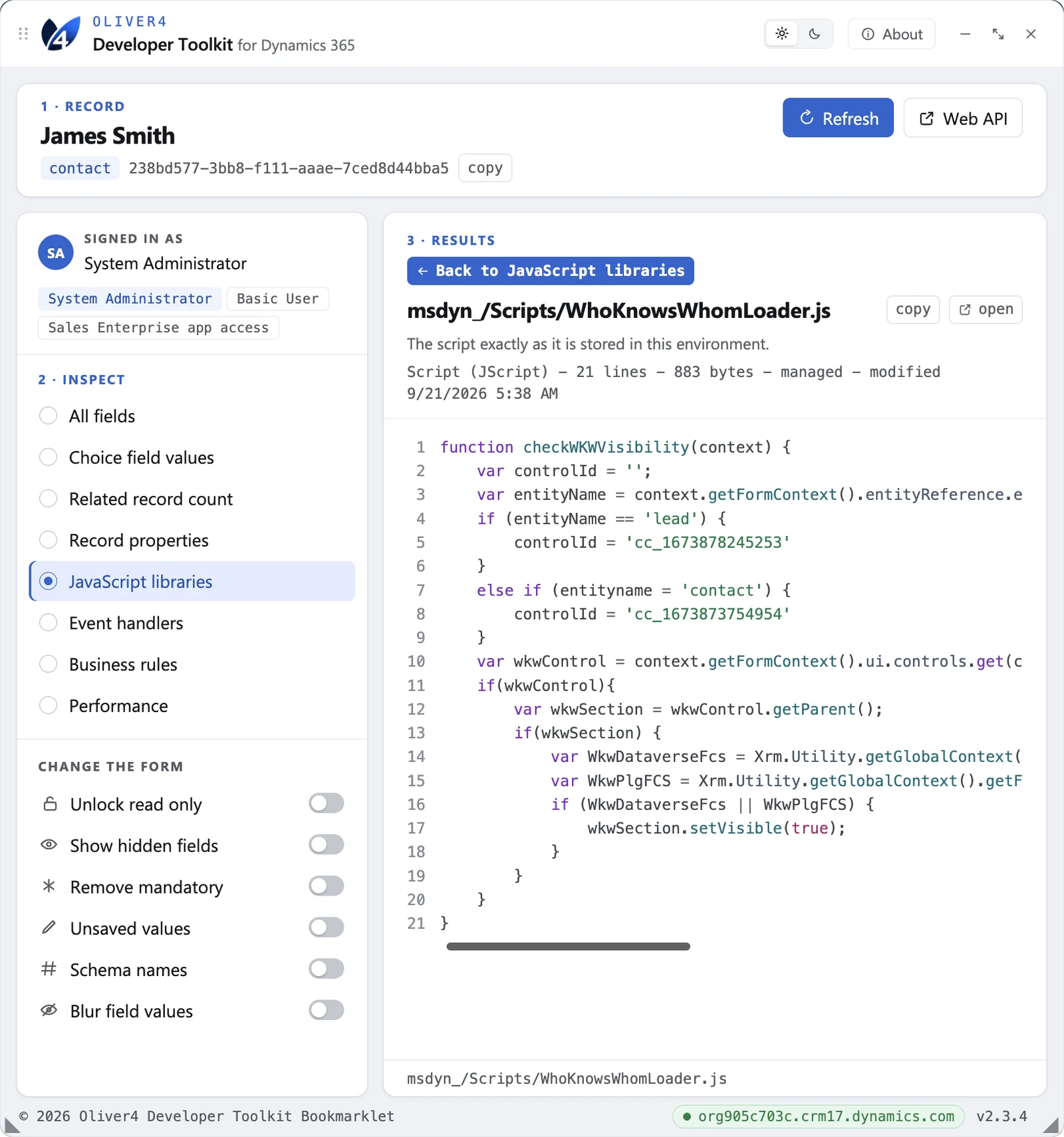
JavaScript libraries, event handlers and business rules for the form. Each library opens its source, read from the Web Resource record, with line numbers and syntax colouring.
-
Blur field values for screen sharing
Blurs values, the record title and subgrid cells while leaving labels readable, so a form can be shown on a call without exposing data. It covers the form behind the panel, not the panel's own listings.
-
Nothing stored, nothing deployed
No solution, no web resource, no browser storage and no cookies. Data goes no further than the Dataverse environment already open in the tab.
The full feature list
Change the form
- Unlocks read-only fields
- Reveals hidden fields
- Removes mandatory field requirements
- Highlights unsaved (dirty) field values
- Toggles schema names beside labels
- Blurs field values for screenshots
Inspect every field on the record
- Lists every field with current value
- Shows full column/metadata definition per field
- Reveals choice (option set) values
- Filters fields by form or table
- Exports values to CSV
Table and record metadata
- Counts related records per relationship
- Shows record properties
- Copies current record ID
- Opens record in Web API
Form scripts and business rules
- Lists JavaScript web resources on form
- Lists event handlers by event/field
- Lists business rules and their status
Environment and access
- Resizable, expandable panel over form
- Opens Microsoft Performance Center and Monitor
- Shows signed-in user and roles
- Shows environment connection status
- Restricted to System Administrator security role
- Read-only - changes nothing in Dataverse
- No solution import, no web resource to deploy
Installation
Requirements
Both routes need:
- Access to a Dynamics 365 model-driven app
- The System Administrator security role
- A record open in a model-driven app form
Browser extension
Installation: around 2 minutesDownload: 1 ZIP file
Additional requirements
- Chrome or Edge, version 111 or later
- Permission to turn on developer mode and load an unpacked extension. Some managed devices block this by policy.
The extension is not distributed through the Chrome Web Store or the Edge Add-ons store, so it is loaded unpacked. Nothing is built and nothing is compiled.
- Download the ZIP
- Extract the ZIP file to a folder you will keep. Note the folder that holds
manifest.json. The extension is loaded from that folder every time the browser starts, so do not delete it afterwards. - Open your browser's extension page:
chrome://extensionsin Chrome, oredge://extensionsin Edge. - Turn Developer mode on. It is top right in Chrome and bottom left in Edge.
- Select Load unpacked, then choose the extracted folder that holds
manifest.json. - Pin the extension to the toolbar. In Chrome, use the jigsaw icon and then the pin beside Oliver4 Developer Toolkit. In Edge, use the extensions button in the toolbar.
- Open a record in a model-driven app. The toolbar icon should be in full colour. It is greyed out on any page that is not a Dynamics 365 host.
Two things worth knowing
- Do not move or rename the folder. The extension ID is derived from the folder path, so moving it makes the browser treat it as a new extension. If you do move it, load it again and remove the old entry.
- There is no auto-update. An unpacked extension never updates itself. To take a new version, replace the folder contents and select Reload on the extension's card.
Bookmarklet
Installation: around 1 minuteDownload: nothing to download
Additional requirements
- Any modern desktop browser with a bookmarks bar
- Permission to add bookmarks, which most corporate policies allow
- An environment without the Power Platform Strict CSP setting enabled
A bookmarklet is an ordinary bookmark whose address is a small piece of JavaScript rather than a web page. Clicking it runs that code against the page you are currently on. It only ever runs when you click it.
- Show your bookmarks bar if it is hidden. Press Ctrl+Shift+B on Windows, or Cmd+Shift+B on macOS.
- Drag the button below onto your bookmarks bar.
Drag it - don't click it. Clicking it here does nothing.
If dragging is blocked, right-click the bookmarks bar, choose Add page, name it
Oliver4 Developer Toolkit, and paste this into the URL box:javascript:(function(){var d=document,s=d.createElement('script');s.src='https://www.oliver4-devtools.com/js/oliver4-toolkit.js?v='+Date.now();s.onerror=function(){alert('Could not load the Oliver4 Developer Toolkit from https://www.oliver4-devtools.com/js/oliver4-toolkit.js');};(d.body||d.head||d.documentElement).appendChild(s);})(); - Check that Oliver4 Developer Toolkit now appears on the bookmarks bar.
- Open a record in a model-driven app and click the bookmark. The panel opens over the form.
Usage
- Open a record in a model-driven app form.
- Click the toolbar icon, or click the bookmark. The panel opens docked to the right of the form.
- The panel checks your security roles first. The controls appear once that check passes.
- The record row at the top gives you the record name, the table logical name and the record ID, with a copy action.
- Use the Change the form switches in the sidebar to alter what the form shows. Several can be on at once, and the switches stay in view while you work. Refresh the browser page to put everything back.
- Use the Inspect list to fill the results pane. Only one at a time. Selecting the same item again clears the pane.
- Drag the header to undock the panel, or use the header buttons to collapse or maximise it. Close it with the panel's close button, or by clicking the icon or bookmark again.
Important notes
- The panel is gated on the System Administrator security role. This is a guard against accidental use rather than a security control. Dataverse enforces your real privileges on every call the toolkit makes.
- Form changes are display-only. Unlocking a read only field or removing a mandatory flag changes what the form renders. Anything you then type is saved only if you save the record.
- Blur covers the form, not the panel. With Blur field values on, values shown in the toolkit's own listings are still in plain text.
- Business rules are listed for the table, not for the form. The Client API does not expose form-level bindings.
Open source
Oliver4 Developer Toolkit is free and open source. The source code and project information are all in the project's GitHub repository.
- Licence
- MIT
- Version
- 2.3.5
- Cost
- Free
- Source
- GitHub
Free and open source · MIT
Source code and project information live in the tool's GitHub repository.
Have an idea?
Have an idea for a feature, an improvement, or a future Oliver4 tool? We would be interested in hearing.
Suggest a feature