
Quick facts
- Platform
- Dataverse / Dynamics 365
- Usage
- XrmToolBox tool (Windows)
- Installation
- Manual - one DLL
- Requirements
- XrmToolBox 1.2025.10+
- Cost
- Free
- Licence
- MIT
- Version
- 1.2.3
- Source
- GitHub
Overview
Custom Dataverse tables show a generic icon in model-driven apps until someone gives them one. Setting an icon by hand means finding a suitable SVG, configuring it, creating a web resource, adding it to the right solution, updating the table and publishing.
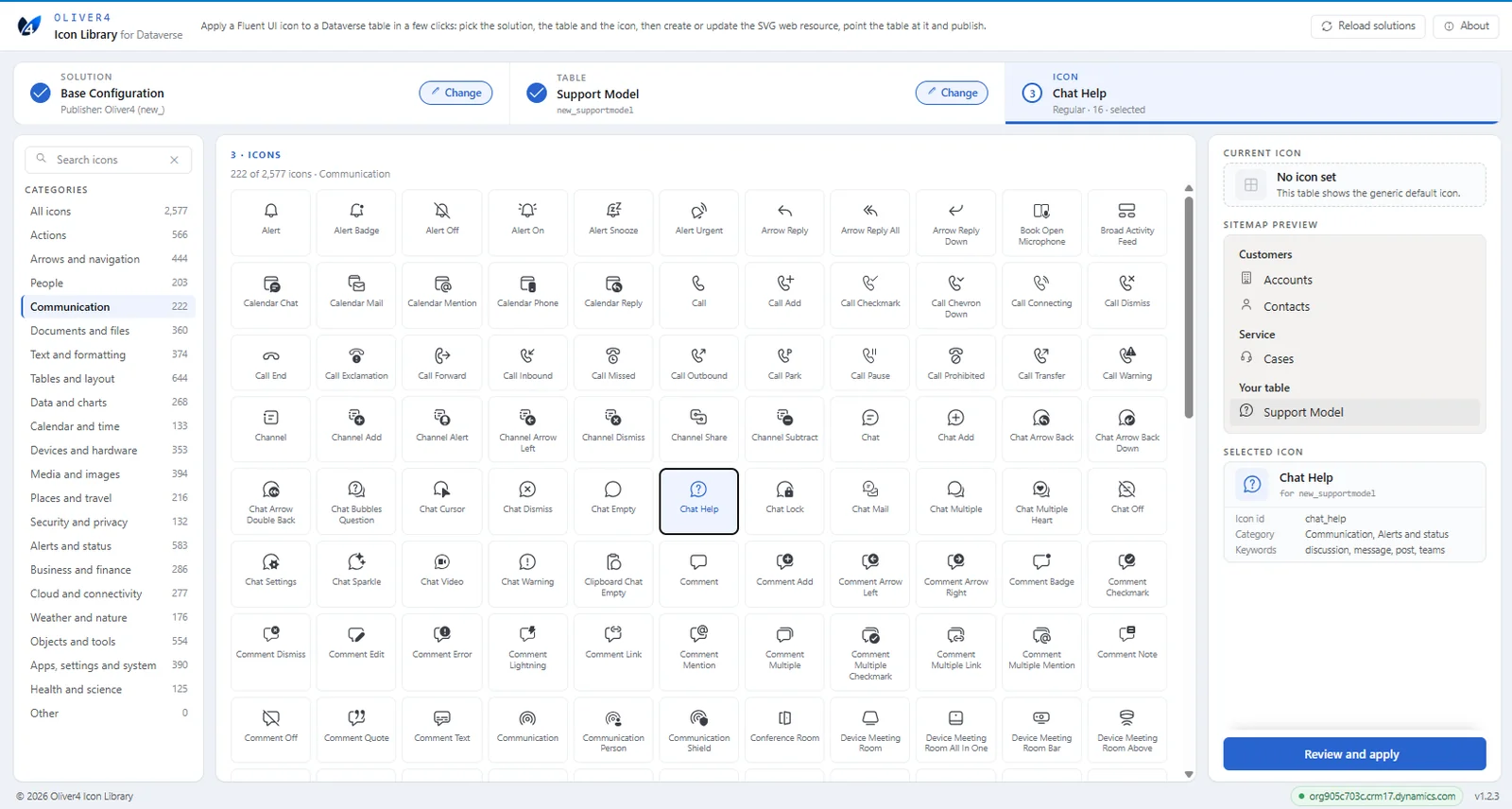
Oliver4 Icon Library does all of that in one short flow inside the XrmToolBox. It includes over 2,500 Fluent UI System Icons, the same icon family used across Microsoft 365 and Power Platform, already prepared to Microsoft's guidance for table icons. You choose a solution, a table and an icon, check the preview, then confirm to apply the icon.
The tool works on custom tables in unmanaged solutions. It publishes only the web resource and table it changed, never the whole solution.
Who is it for?
- Dynamics 365 and Power Platform developers who want custom tables to look consistent with the rest of a model-driven app
- Makers and technical consultants who set up table icons regularly and want to stop hunting for and editing SVG files
- Solution architects and team leads who want icon web resources created in the right solution with the right publisher prefix
Screenshots
Why build another icon tool?
Setting a table icon usually means jumping between tools. This one brings it all together.
-
Find it and set it in one tool
Over 2,500 Fluent UI System Icons built in, already sized and themed for Dataverse. The same tool creates the web resource, adds it to your solution and sets the table icon.
Usually: find an icon elsewhere, then upload it with another tool
Here: pick it, upload it and set it in one place
-
Easy, step by step
Pick a solution, a table and an icon, preview it in a mock sitemap, then confirm. Nothing is saved until you do.
Usually: work it out as you go
Here: a guided flow with a preview
Features
-
The whole job in one flow
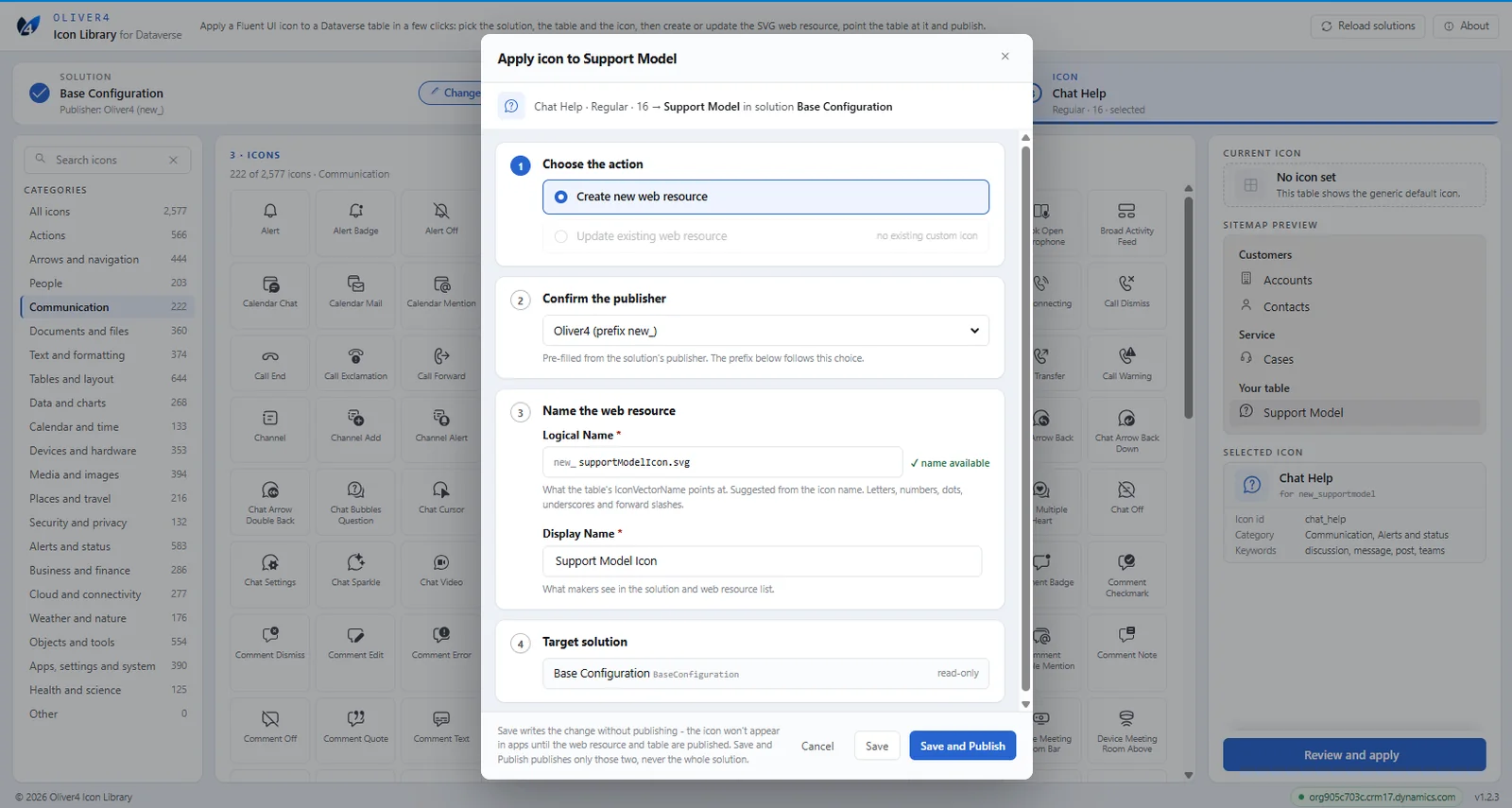
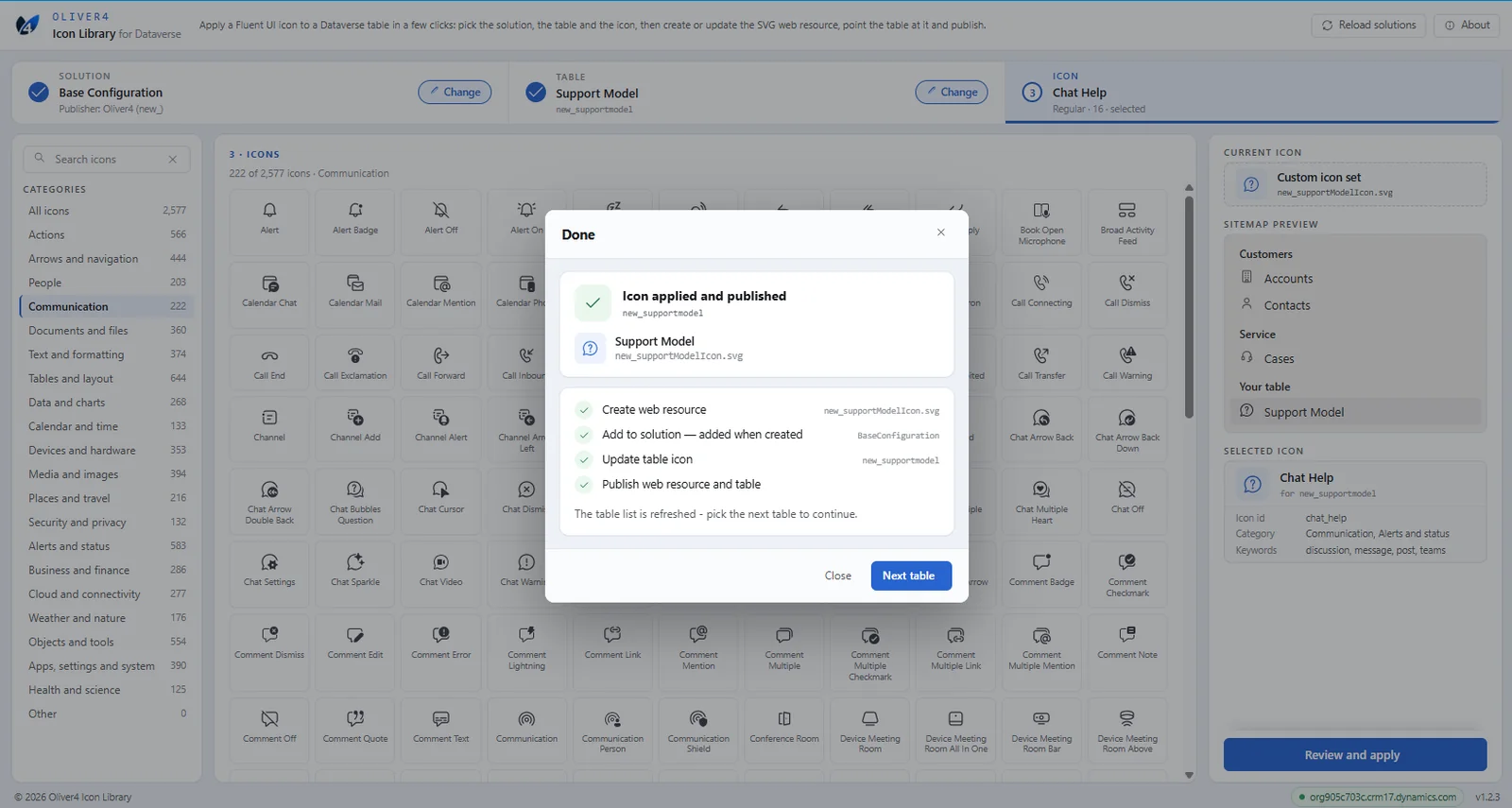
Select a solution, a table and an icon, then confirm. The tool creates or updates the SVG web resource, adds it to the solution, sets the table icon and publishes if you ask it to.
-
Fluent UI icon library with search and filters
Browse over 2,500 Fluent UI System Icons, search by name or keyword and filter by category. Every icon is prepared for Dataverse: it uses the app's theme colour, is sized at 16 x 16 and stays under 10 KB.
-
Preview before you commit
See the new icon next to your table in a mock model-driven app sitemap, alongside similar icons for a comparison.
-
Create, update or reuse web resources
Create a new web resource with a suggested name and your publisher's prefix, or update the table's existing one. If the same icon already exists in the environment, the tool offers to reuse it rather than create a duplicate, and warns you if other tables share a web resource you are about to change.
-
Targeted publishing
Save and Publish publishes only the web resource and the table it changed. It never publishes the whole solution or all customisations.
-
Clear results if something fails
Progress is shown for each step. If a step fails, the tool tells you exactly which steps succeeded and which did not, so you know the state of your environment and can retry.
Installation
Installation: around 2 minutesRequirements: XrmToolBoxDownload: 1 ZIP file, containing one DLL
Requirements
- Windows with XrmToolBox 1.2025.10 or later
- Microsoft Edge WebView2 Runtime. This is already installed on most Windows 10 and 11 machines. If the tool reports it is missing, install it from the WebView2 download page.
- A connection to a Dataverse environment, with permission to create web resources, update table definitions and publish customisations
Install
- Download the ZIP
- Extract the ZIP. It contains
Oliver4.IconLibrary.dllplus licence and notice files. - Close XrmToolBox if it is open.
- Copy
Oliver4.IconLibrary.dllinto your XrmToolBox Plugins folder. The default location is below - paste it into the File Explorer address bar. If you have changed it, XrmToolBox shows the folder under Configuration > Settings > Paths.%APPDATA%\MscrmTools\XrmToolBox\Plugins - Right-click the DLL and choose Properties. If there is an Unblock tick box, tick it and click OK. Otherwise XrmToolBox may not load the tool.
- Start XrmToolBox and open the Tools tab.
Confirm it installed
Oliver4 Icon Library should appear in the XrmToolBox tool list.
The DLL is the whole tool. The icons and interface are inside it and are unpacked to %LOCALAPPDATA%\Oliver4\IconLibrary the first time it opens. Delete that folder to reset the tool.
Updating
Close XrmToolBox, replace the DLL in the Plugins folder with the new version, unblock it if needed and restart XrmToolBox.
Usage
- Open Oliver4 Icon Library in XrmToolBox and connect to your environment.
- Choose a solution. Only unmanaged solutions are listed. The new web resource will be added to this solution.
- Choose a table. Only custom tables are listed, because Microsoft does not support changing the icons of system tables. The tool shows whether the table has a custom icon, no icon or a broken icon reference.
- Search or filter the library and select an icon. Check the preview on the right.
- Select Review and apply. Confirm the action, publisher and web resource name.
- Select Save and Publish to see the icon in your apps straight away, or Save to publish later.
- Select Next table to carry on with the same solution.
Things to know
- Publishing a table also publishes any other unpublished changes on that table, such as form or view edits a colleague has in progress.
- If you choose the Default Solution, the web resource is added only to the Default Solution. It will not move through your environments unless you add it to a proper solution afterwards.
- The tool applies one icon to one table at a time. It does not set sitemap subarea icons or legacy PNG/ICO icons.
Open source
Oliver4 Icon Library is free and open source. The source code and project information are available in the project's GitHub repository.
The tool bundles Fluent UI System Icons from Microsoft, also under the MIT licence. The full licence and notice text is included in the download and shown in the tool's About screen. Oliver4 is an independent tool and is not affiliated with Microsoft.
- Licence
- MIT
- Version
- 1.2.3
- Cost
- Free
- Source
- GitHub
Free and open source · MIT
Source code and project information live in the tool's GitHub repository.
Have an idea?
Have an idea for a feature, an improvement or a future Oliver4 tool? We would be interested in hearing it.
Suggest a feature