
Quick facts
- Platform
- Dynamics 365 model-driven apps
- Usage
- Browser
- Options
- Extension / Bookmarklet
- Requirements
- Chrome or Edge 95+
- Cost
- Free
- Licence
- MIT
- Version
- 1.5.5
- Source
- GitHub
How do you want to use it?
The tool does exactly the same thing either way. The only difference is how the browser loads it.
Browser extension
The default choice. Use the bookmarklet only if you cannot install browser extensions.
Install the tool as an unpacked browser extension in Chrome or Edge. Nothing is deployed into your Dynamics 365 environment, and it works on any Dynamics 365 organisation. You click the Oliver4 icon in the browser toolbar to open the panel.
Best for: machines where you can turn on developer mode in the browser.
Download the extension (ZIP)Bookmarklet
A bookmarklet is a browser bookmark that holds a short piece of JavaScript instead of a web address. Clicking it runs the checker on the page you are already looking at. Nothing is installed in the browser. The JavaScript file is hosted by Oliver4, but once it has loaded on the page, the checker runs entirely on your machine - no further network calls, no data leaves your browser.
Best for: managed or corporate environments where browser extensions are blocked by policy.
Get the bookmarkletNot sure which one you need?
Answer a few short questions and this will tell you which route to take.
Overview
The Web Content Accessibility Guidelines (WCAG), published by the W3C, are the international standard for making web content usable by people with disabilities, including people who rely on screen readers, keyboard-only navigation or magnification. Each success criterion is graded Level A, AA or AAA, and Level AA is the usual target in law and procurement - UK public sector bodies, for example, are expected to meet WCAG 2.2 AA. Dynamics 365 model-driven apps run in the browser, so they count as web content. Microsoft publishes conformance reports for the platform, but the forms, views, custom controls and theme colours you build on top of it are yours to get right.
Accessibility problems in model-driven apps are easy to introduce and difficult to identify. A missing label on a custom control, a low-contrast theme colour or a form section built out of unlabelled elements will not show up in normal functional testing, and a full manual audit is usually too slow to run on every release.
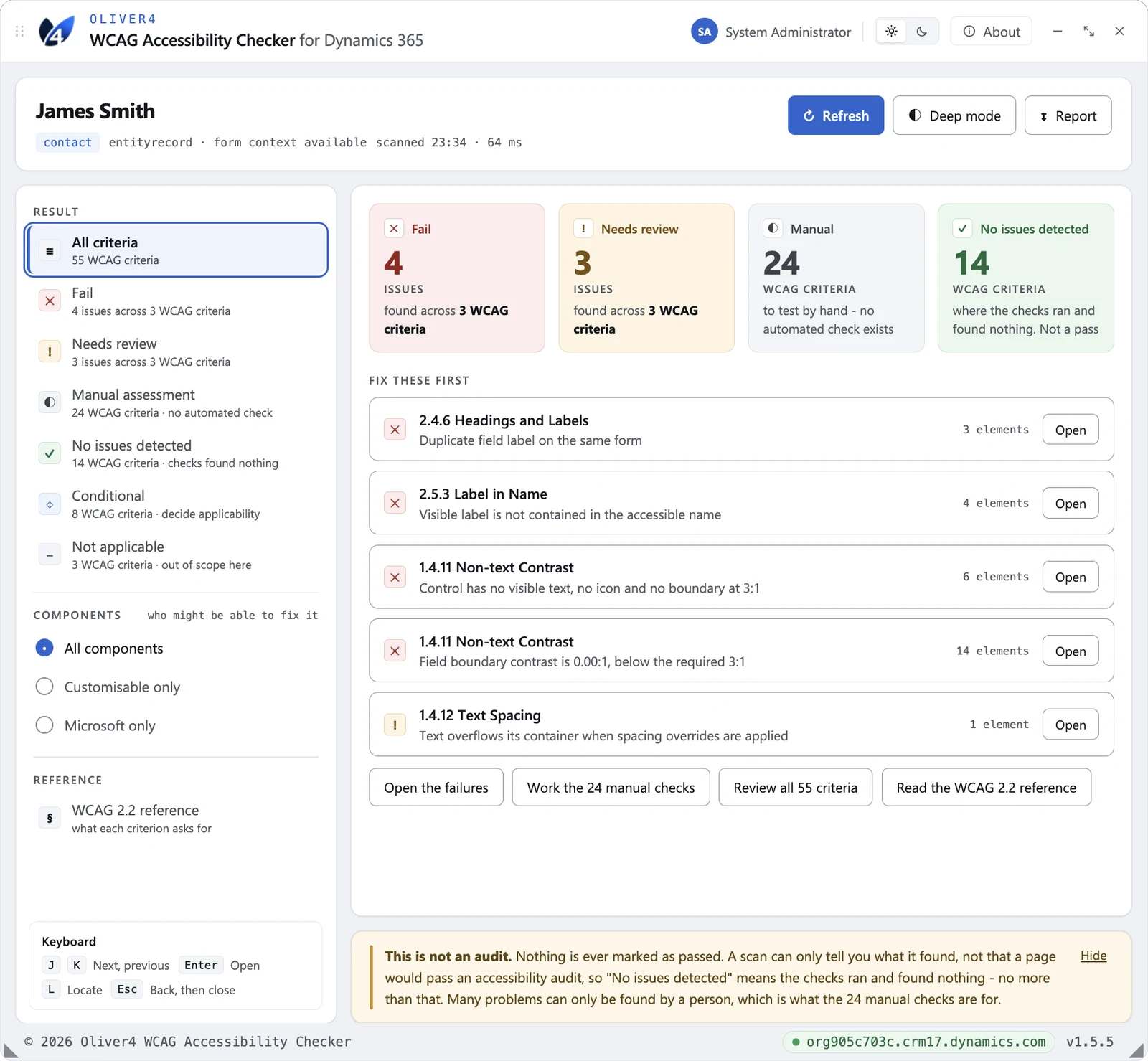
This tool gives you a fast first pass. It opens as a panel over the form or view you are looking at, scans what is on screen, and reports what it finds against the 55 WCAG 2.2 Level A and AA success criteria. Findings are grouped by severity, tagged with who can actually fix them, and each one carries numbered steps for putting it right in Dynamics 365.
It is a developer aid, not an audit, and it is not evidence of conformance. Roughly 25 to 40 per cent of real accessibility problems cannot be detected by any automated tool.
Who is it for?
- Dynamics 365 developers who want to catch accessibility defects on a form before it reaches a tester
- Testers running accessibility checks as part of acceptance testing, who need a consistent starting point and a report to attach to a defect
- Solution architects and technical leads who need to know how much of an app's accessibility position is configuration within your control and how much belongs to Microsoft
- Teams delivering into organisations where WCAG 2.2 AA is a contractual requirement and an accessibility statement has to be published
- Anyone preparing for a formal accessibility audit who wants the obvious failures to be identified early
Screenshots
Why build an accessibility checker?
General accessibility checkers already exist. We could not find one built for Dynamics 365.
-
Made for Dynamics 365
It understands model-driven forms and views, names the schema name behind each finding, and suggests whether the fix is within your control or part of the core Microsoft product.
Usually: a general web checker that flags platform markup you cannot change
Here: findings tagged by who can fix them
-
WCAG, in plain Dynamics terms
Success criteria are hard to read and harder to apply to a form. Each finding comes with suggested steps for fixing it in Dynamics 365.
Usually: a criterion number and a link to the standard
Here: steps to fix it in Dynamics 365
Features
-
WCAG 2.2 Level A and AA coverage
21 of the 55 WCAG success criteria have an automated check behind them, 23 are flagged as manual with instructions, and the rest are conditional or not applicable to desktop forms.
-
Findings tagged by who can fix them
Every issue is badged Customisable, Microsoft, Needs triage or Mixed, so you can identify what is within your control to fix. The tag is a suggestion and a strong hint to check, not a verdict.
-
Fix guidance on every finding
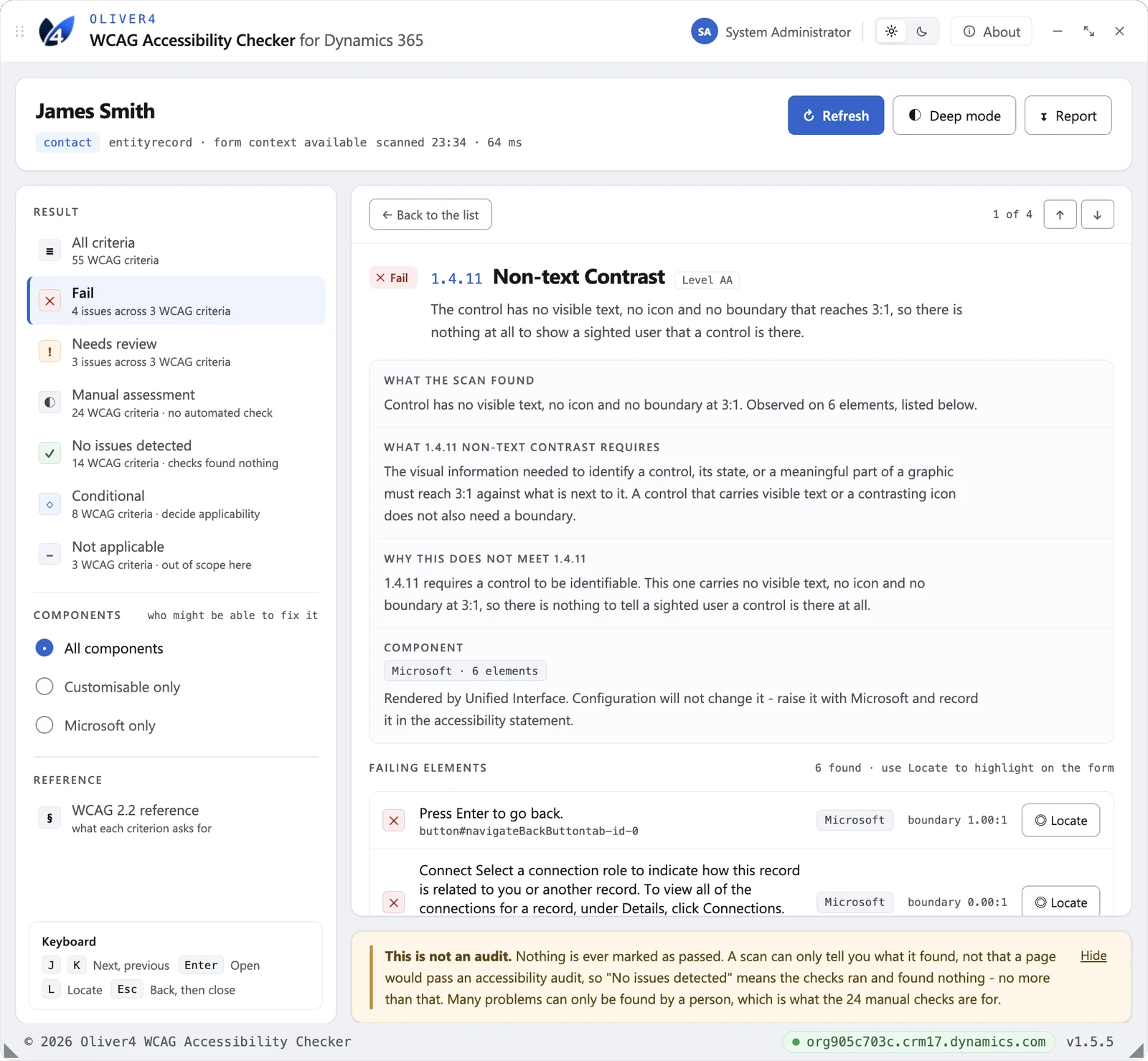
Each issue carries suggested steps for correcting it in Dynamics 365, the elements it was found on with their schema names, the evidence measured, and links to the W3C Understanding pages. This is guidance only and not a guaranteed fix.
-
Three views for three jobs
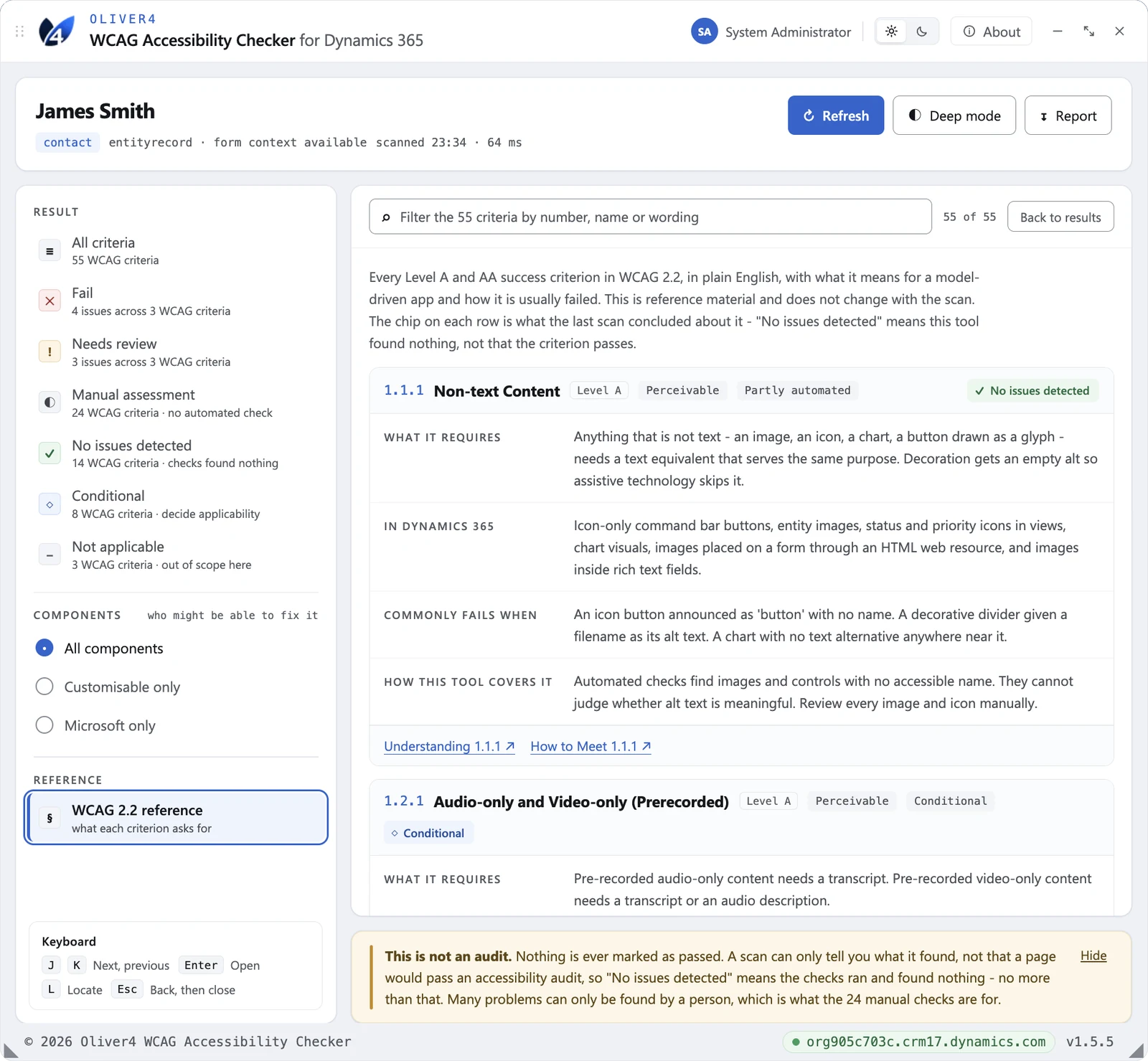
An Overview to hand to someone else, a filterable and sortable triage list, and an issue detail view for the person doing the work. A built-in WCAG 2.2 reference sits alongside them.
-
Markdown report
One click downloads a dated Markdown report and copies the same text to the clipboard, ready to paste into a defect, a wiki page or an accessibility statement.
-
Deep mode for focus checks
An optional deeper scan measures focus visibility and focus indicator contrast. It programmatically focuses controls and fires your OnFocus handlers, so the tool explains that and asks before running it.
-
Runs entirely in the browser
No network calls, nothing transmitted anywhere, and no storage beyond your light or dark theme choice. The report download is generated in the page.
The full feature list
Scanning and coverage
- Works instantly on any Dynamics 365 form
- Automated checks across 21 WCAG success criteria
- Six-state results, from Fail to Manual assessment
- Full WCAG 2.2 reference built into the panel
Handling real forms
- Recognises high-contrast modes and avoids false readings
- Copes with hidden tabs and long scrolling grids
- Filter by form, command bar, or subgrids
Triage and fix guidance
- Clear overview with issue counts and a fix-first priority list
- Drill into any issue for the cause and suggested fix steps
- Shows who can fix it: your team or Microsoft
Deep mode
- Deep mode checks keyboard focus and its contrast
- Clear warning before deep mode runs on your form
Reporting and the panel itself
- One-click Markdown report, ready to share
- Light and dark themes to match your setup
- Full keyboard control, no mouse required
- Built to meet the same standard it checks for
- Runs entirely in the browser, nothing sent anywhere
Installation
Requirements
Both routes need:
- Google Chrome or Microsoft Edge (Chromium), version 95 or later
- Access to a Dynamics 365 model-driven app
- A Dynamics 365 form open in the browser
Browser extension
Installation: around 2 minutesDownload: 1 ZIP file
Additional requirements
- Permission to turn on developer mode and load an unpacked extension. Some managed devices block this by policy.
The extension is not distributed through the Chrome Web Store or the Edge Add-ons store, so it is loaded unpacked. Nothing is built and nothing is compiled. It requests activeTab and scripting only, with no host permissions, so installing it shows no "read your data on all websites" warning. Access to a tab is granted when you click the toolbar icon and lasts only until that tab closes.
- Download the ZIP
- Extract the ZIP file to a folder you will keep. Note the folder that holds
manifest.json. The extension is loaded from that folder every time the browser starts, so do not delete it afterwards. - Open your browser's extension page:
chrome://extensionsin Chrome, oredge://extensionsin Edge. - Turn Developer mode on. It is top right in Chrome and bottom left in Edge.
- Select Load unpacked, then choose the extracted folder that holds
manifest.json. - Pin the extension to the toolbar. In Chrome, use the jigsaw icon and then the pin beside Oliver4 WCAG Accessibility Checker. In Edge, use the extensions button in the toolbar.
- Open a Dynamics 365 form and click the toolbar icon. The panel opens on the right.
Three things worth knowing
- Do not move or rename the folder. The extension ID is derived from the folder path, so moving it makes the browser treat it as a new extension. If you do move it, load it again and remove the old entry.
- There is no auto-update. An unpacked extension is not signed and never updates itself. To take a new version, download the new ZIP, replace the folder contents and select Reload on the extension's card.
- If Load unpacked is missing or greyed out, the browser is managed and developer mode has been switched off by policy. Consider using the bookmarklet option instead.
Bookmarklet
Installation: around 1 minuteDownload: nothing to download
Additional requirements
- Any modern desktop browser with a bookmarks bar
- Permission to add bookmarks, which most corporate policies allow
- An environment without the Power Platform Strict CSP setting enabled
A bookmarklet is an ordinary bookmark whose address is a small piece of JavaScript rather than a web page. Clicking it runs that code against the page you are currently on. It only ever runs when you click it.
- Show your bookmarks bar if it is hidden. Press Ctrl+Shift+B on Windows, or Cmd+Shift+B on macOS.
- Drag the button below onto your bookmarks bar.
Oliver4 WCAG Accessibility Checker
Drag it - don't click it. Clicking it here does nothing.
If dragging is blocked, right-click the bookmarks bar, choose Add page, name it
Oliver4 WCAG Accessibility Checker, and paste this into the URL box:javascript:(function(){var d=document,s=d.createElement('script');s.src='https://www.oliver4-devtools.com/js/oliver4-wcag-accessibility-checker.js?v='+Date.now();s.onerror=function(){alert('Could not load the Oliver4 WCAG Accessibility Checker from https://www.oliver4-devtools.com/js/oliver4-wcag-accessibility-checker.js');};(d.body||d.head||d.documentElement).appendChild(s);})(); - Check that Oliver4 WCAG Accessibility Checker now appears on the bookmarks bar.
- Open a Dynamics 365 form and click the bookmark. The panel opens on the right.
Usage
- Open a Dynamics 365 form or view and wait for it to finish loading, including subgrids.
- Click the Oliver4 toolbar icon, or the bookmark. The panel opens on the right, on the Overview.
- Work through the fix these first queue, or pick a bucket in the left column to see the full list.
- Open any issue to see the elements affected, the evidence measured and the steps to fix it.
- Use the Components filter to separate what your team can change from what belongs to Microsoft, and the Scope filter to focus on the form, the command bar or subgrids.
- Press Report to download a dated Markdown report and copy it to the clipboard.
- Browse to another record or view and press Refresh to scan that page. Leave the panel open while you work.
Press the icon or bookmark again to close the panel. Escape also closes it when focus is inside.
Worth knowing
- If the page is not a Dynamics 365 page, or the app has not finished rendering, the panel opens read only and runs no scan. Wait, then press Refresh.
- Only rendered content is scanned. Inactive form tabs and unrendered grid rows are not in the page, so switch tab or scroll, then press Refresh.
- Contrast is not measured while Windows high contrast, a contrast theme, an inverted display or a high-contrast browser extension is active. Those criteria come back as Needs review with the reason. Scan with all of them off.
- Deep mode fires your OnFocus handlers. Do not run it in Production or on a form with unsaved changes.
Open source
Oliver4 WCAG Accessibility Checker is free and open source. The source code and project information are available in the project's GitHub repository.
- Licence
- MIT
- Version
- 1.5.5
- Cost
- Free
- Source
- GitHub
Free and open source · MIT
Source code and project information live in the tool's GitHub repository.
Have an idea?
Have an idea for a feature, an improvement or a future Oliver4 tool? We would be interested in hearing it.
Suggest a feature